What Is an Apple Home Hub? The Basics of Its Role and Required Devices
When you first get interested in smart home technology, one of the first things that trips you up is the question: “What exactly is a home hub, and do I actually need one?” Once you understand how it works, choosing the right devices becomes much clearer.
What a Home Hub Does: The Engine Behind Remote Control and Automation
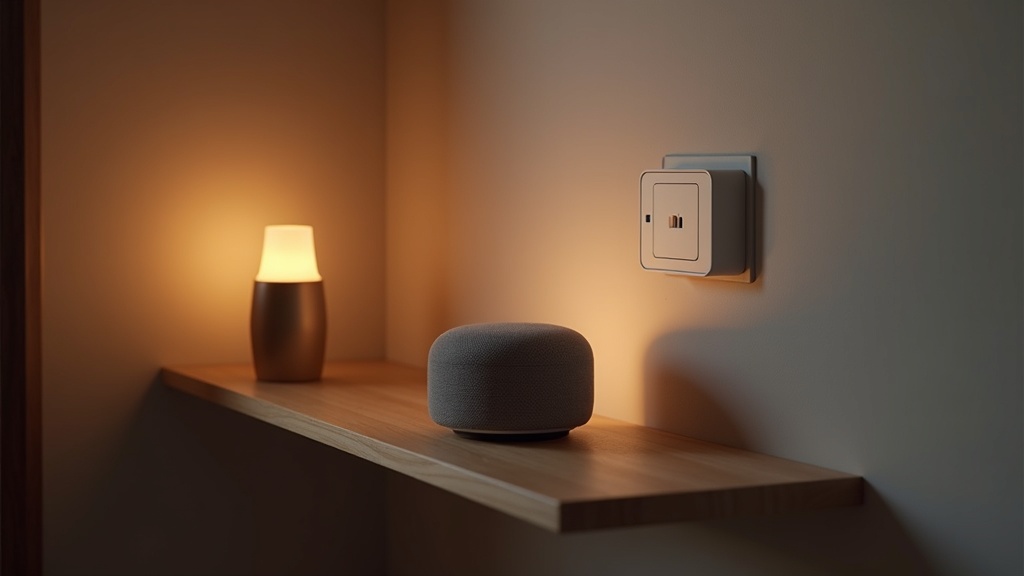
A home hub is the always-on “bridge” that connects your smart home devices to Apple’s servers. When you’re at home, you can control devices directly over the same Wi-Fi network — but for remote access from outside the house and running automations, that bridge is essential.
Key roles a home hub plays
- Remote access to HomeKit devices from anywhere
- Running automations like “turn on the lights at a set time”
- Sharing your home with family members and trusted people
- Relaying notifications from door sensors and smoke detectors
Which Devices Can Serve as a Home Hub: HomePod vs. Apple TV 4K
As of 2026, there are three devices that can function as a home hub:
| Device | Characteristics |
|---|---|
| HomePod (2nd generation) | Speaker and hub in one. Best choice if audio quality matters |
| HomePod mini | Compact and space-saving. Great for multi-room setups |
| Apple TV 4K (2nd generation or later) | The go-to option for your TV area. Doubles as a media player |
iPhones and iPads used to work as home hubs, but that’s no longer the case — only these three devices are supported. Since the device needs to be powered on at all times, the key is placing it somewhere it’ll always be running.
For the latest pricing and full specs on Apple HomePod, check the official Apple website or your preferred retailer. As a Matter-compatible Apple home hub, it’s well worth considering as the centerpiece of your smart home setup.
Can You Use a Smart Home Without a Hub? What You Can and Can’t Do
Without a home hub, you can still control devices locally when you’re connected to the same Wi-Fi network. But there are clear limitations.
What you can’t do without a home hub
- Remote control from outside your home (the app will show “unavailable” when you’re away)
- Running automations triggered by time of day or motion sensors
- Inviting family members to your home and assigning them access
If all you want is to control your lights by voice, you can get started without a hub. But if you want to take advantage of automation — the real power of a smart home — a home hub is essentially a must-have.
What Is Matter? Why It Pairs So Well with Apple Home
“There aren’t many HomeKit-compatible products out there.” “I mixed devices from different brands and nothing worked together.” If you’ve tried to build a smart home and run into compatibility headaches like these, Matter is the answer you’ve been waiting for.
The Matter Standard: A Common Language That Works Across Brands
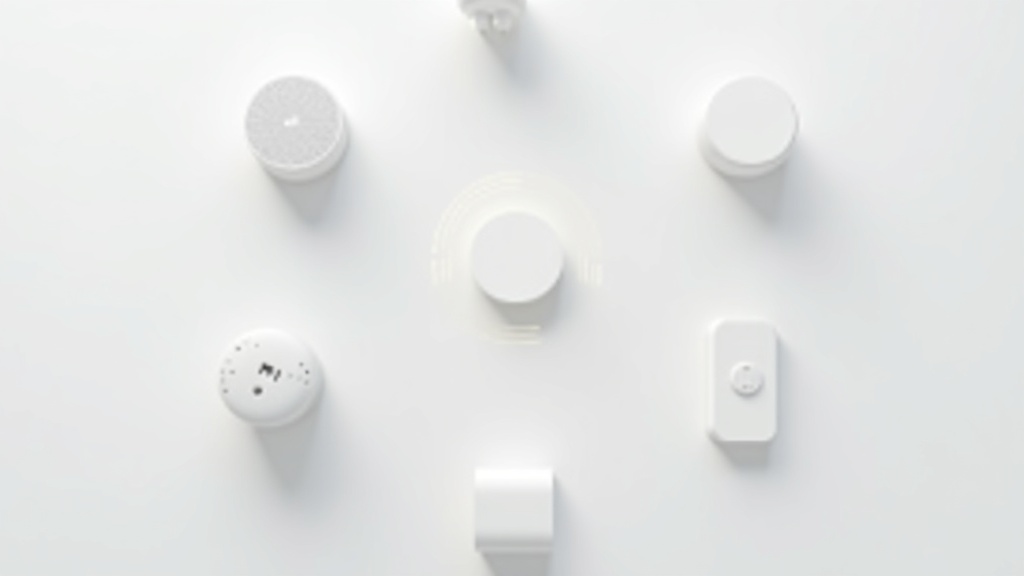
Matter is a unified smart home communication standard jointly developed by major tech companies including Apple, Google, Amazon, and Samsung. It’s managed by the industry group CSA (Connectivity Standards Alliance) and officially launched as version 1.0 in October 2022.
Traditional smart home devices were locked into proprietary ecosystems — “this speaker only works with Amazon Echo,” for example. Matter tears down those walls by creating a common language. Any Matter-compatible device can be controlled through Apple Home, Google Home, or Amazon Alexa.
Matter at a glance
- Open-source, IP-based standard (supports Wi-Fi, Thread, and Ethernet)
- Jointly developed by Apple, Google, Amazon, and Samsung
- Local communication by default — less vulnerable to cloud outages
- Device setup and authentication done with a single QR code scan
HomeKit, Matter, and Thread: Understanding the Differences
These three terms are easy to confuse, but each plays a distinct role.
To put it simply: Thread is the road, Matter is the traffic law, and HomeKit is the GPS navigation. When you place a HomePod as your home hub, all three layers connect into one seamless system.
Why Choosing Matter-Compatible Devices Is a Smart Move
The biggest advantage of going with Matter-compatible devices is freedom from ecosystem lock-in. Even if you’re using Apple Home today, you won’t have to replace all your devices if you decide to switch to Google Home down the road.
3 reasons to choose Matter-compatible devices
- Multi-platform control: A single device can be managed simultaneously through Apple Home, Google Home, and Alexa
- Local processing: In-home control continues even during internet outages
- Easy setup: Just scan a QR code to add the device to any supported platform
That said, there’s an important caveat: just because a device is labeled as Matter-compatible doesn’t mean all of its features are accessible via Matter. Some products reserve advanced settings exclusively for the manufacturer’s own app, so be sure to check the official product page for the full scope of Matter support before buying.
How to Set Up Apple Home Hubs: Common Pitfalls Explained
Have you ever bought a HomePod only to find it isn’t being recognized as a home hub? The setup process itself isn’t complicated, but if your Apple ID sign-in status or iCloud settings aren’t aligned properly, you can run into issues surprisingly fast. Here’s a step-by-step breakdown along with the most commonly overlooked settings.
How to Set Up HomePod as a Home Hub (Step by Step)
As long as your HomePod is signed in with the same Apple ID as your iPhone, it will automatically function as a home hub. There’s no manual toggle to turn it on or off, so if it isn’t being recognized, checking your sign-in status is the first thing to do.
Plug in your HomePod and bring your iPhone close to it
The setup screen appears on first boot. With the Home app open on your iPhone, bring it near the HomePod and it will be detected automatically.
Verify your Apple ID and iCloud sign-in
During setup, confirm that the Apple ID shown matches the one used in your Home app. If you use Family Sharing, it must be the same ID as the home “owner” account.
Check the hub status in the Home app
In the Home app, tap the menu in the top right → “Home Settings” → “Home Hubs & Bridges.” If your HomePod shows as “Connected,” you’re all set.
How to Register Apple TV 4K as a Home Hub in the Home App
Just like HomePod, Apple TV 4K is automatically registered as a home hub simply by signing in with the same Apple ID. However, it won’t work unless iCloud is enabled on the Apple TV side.
On Apple TV, go to “Settings” → “Users and Accounts”
Confirm that you are already signed in with your Apple ID.
Go to “iCloud” → turn on “Home Data”
If this toggle is off, the Home app won’t recognize your Apple TV. It’s easy to miss, so make sure to check it.
Confirm Apple TV’s status in the Home app
Once Apple TV appears in the “Home Hubs & Bridges” list and shows “Connected,” setup is complete.
If you want to check the latest pricing and availability for Apple TV 4K, head over to its Amazon product page for full details. You can check out its performance as a Matter-compatible hub as well as its 4K HDR video capabilities all in one place.
Common Troubleshooting: Hub Not Recognized or Keeps Going Offline
If your hub keeps dropping offline after setup, the issue is almost always related to your network environment or Apple ID. Work through the checklist below in order.
- Are your HomePod / Apple TV and iPhone connected to the same Wi-Fi network (same SSID)?
- Are your router’s 5GHz and 2.4GHz bands split into separate SSIDs? (Mixing devices across bands can cause them to lose sight of each other.)
- Is two-factor authentication enabled on your Apple ID?
- Is Find My turned on in iCloud? (This is required for home hub functionality.)
- Is your HomePod running the latest software version?
Note: Connecting your HomePod to a guest network (isolation mode) can prevent your iPhone from recognizing it. Always connect HomePod to your main network.
If none of that resolves the issue, the most reliable fix is to remove the HomePod from your home and re-pair it. It’s a bit of a hassle to redo the setup, but since your data is stored in iCloud, your Matter device associations will be restored after the process.
Top 8 Matter-Compatible Devices by Category
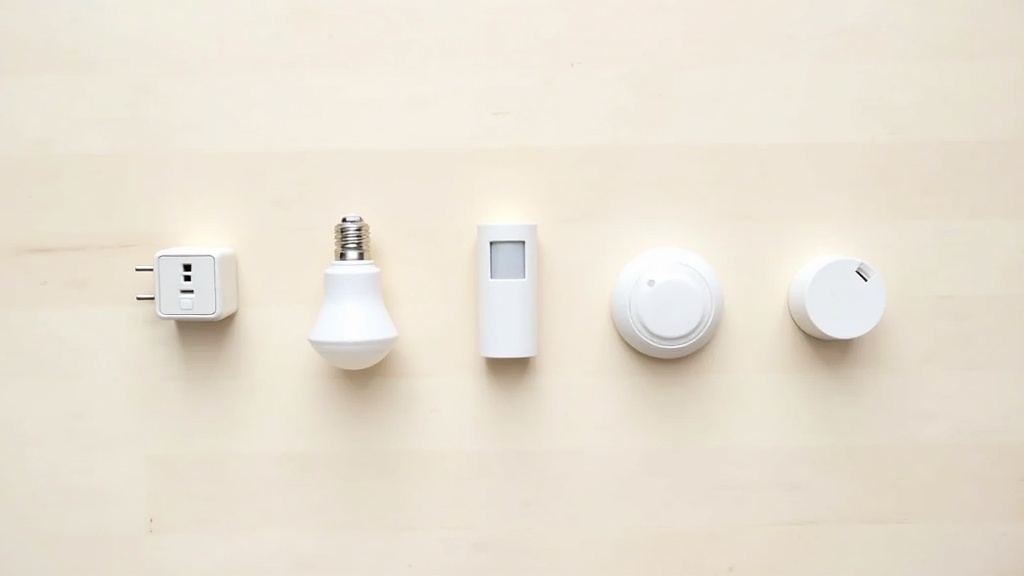
Once your initial setup is complete, the next step is choosing which devices to add to your home. Matter-compatible products are becoming more common, but Thread support and Apple Home compatibility can make a big difference in day-to-day usability. Here are eight proven products organized by category.
[Smart Plug] Eve Energy | Thread-Enabled Plug Built for Privacy
Among Thread-compatible smart plugs, Eve Energy stands out for putting privacy first. All communication happens entirely within your local network — no cloud servers involved — and remote access works exclusively through your home hub.
It has a built-in energy monitoring feature that lets you check the real-time power consumption of connected appliances directly in the Home app. Thanks to Thread support, it communicates directly with your home hub for consistently fast response times.
It’s priced higher than most competitors. The design is clean but the plug is on the larger side, which can block a second outlet if you need to use both at the same time.
[Smart Plug] TP-Link Tapo P125M | Budget-Friendly Matter-Compatible Plug
For Matter-compatible plugs, the Tapo P125M hits a great balance of affordability and availability. It’s widely stocked at Amazon and major electronics retailers, making it one of the easiest options to get your hands on.
With Matter support, you can use a single device across Apple Home, Google Home, and Amazon Alexa. This is especially handy if you’re running a multi-ecosystem smart home setup.
It connects over Wi-Fi rather than Thread, so you won’t benefit from a Thread Border Router. In spots far from your router, connection stability may be less reliable than Eve Energy.
[Smart Plug] Meross MSS315 | A Proven Pick with Early HomeKit and Matter Support
Meross was one of the first brands to support HomeKit, and the MSS315 brings that track record to Matter. Long experience with HomeKit users means rock-solid compatibility with Apple Home.
Energy monitoring is built in, so you can keep tabs on power usage. Meross also offers multi-outlet versions, giving you flexibility depending on how you plan to use it.
Wi-Fi only — no Thread support. The app experience feels a bit less polished compared to Eve or TP-Link. That said, it’s a solid choice if price is your main priority.
[Lighting] Nanoleaf Essentials | Thread-Connected Smart Bulb with Fast Response
If Thread support is a priority for your smart bulbs, Nanoleaf Essentials is the first name to consider. Paired with a HomePod or Apple TV 4K as a Thread Border Router, the difference in response speed compared to Wi-Fi bulbs is immediately noticeable.
Color temperature is adjustable from warm white to daylight, making it a great match for automations that shift lighting based on time of day or activity. Matter support also means you’re covered if you ever switch ecosystems down the road.
The primary bulb type uses an E26 (standard A19-style) base. Depending on your light fixtures, this may not fit — always double-check the socket type before buying.
[Lighting] Philips Hue | A Legacy Brand Now with Matter for Cross-Ecosystem Use
Philips Hue’s long-standing reputation in smart lighting gets even more versatile with Matter support. Existing Hue Bridge (v2 or later) owners can enable Matter via a firmware update, meaning you may not need to replace any hardware you already own.
The lineup covers a huge range of bulb types, colors, and accessories, making it easy to outfit an entire space with one brand. Apple Home integration has been reliable for years — it’s one of the most stable options in the industry.
The Bridge (hub) is required, which raises the upfront cost. We recommend starting with a starter kit rather than buying individual bulbs.
The Philips Hue Starter Kit is the go-to choice for Matter-compatible smart lighting among a wide range of users. Check the official site for the latest pricing and bundle contents. With an extensive track record of Apple Home and Google Home integration, it’s one of the easiest ways to get started with smart lighting even if you’re brand new to it.
[Lighting] IKEA TRÅDFRI Series (DIRIGERA Compatible) | Matter Support at an Affordable Price
If you want to try smart lighting without spending a lot, the IKEA TRÅDFRI series is worth a look. Built around the DIRIGERA hub, it supports Matter, which means you can add these lights to Apple Home as well.
The ability to shop for furniture and lighting together in one place is a uniquely IKEA advantage. The lower price point also means you can outfit multiple rooms without breaking the bank.
When added to Apple Home via Matter, some features in the IKEA Home Smart app may become unavailable. The color bulb selection is also more limited than Philips Hue, so if full-color lighting effects are important to you, you may find it underwhelming.
The Meross MSS315 is well-regarded as a starter Matter-compatible smart plug. Check Amazon for current pricing and availability, and take a look at the compatible device list and user reviews.
[Smart Hub & Sensors] Aqara Hub M2 | A Matter Hub Built for Rich Sensor Integration
This Matter hub excels at bridging a wide variety of Zigbee devices — door/window sensors, temperature and humidity sensors, motion sensors, and more — into Apple Home. It’s especially powerful if you want to build detailed automations using multiple sensors.
Aqara’s own sensor lineup is extensive and reasonably priced. With Matter support, you can control the entire Aqara ecosystem directly from Apple Home.
The product is designed primarily around Aqara’s own sensors, so compatibility with third-party sensors is limited. Setup also requires the dedicated Aqara app — it doesn’t run entirely within Apple Home alone.
Pricing and availability for the SwitchBot Hub 2 change frequently, so check for the latest if you’re interested. It has a solid track record as a Matter hub with Apple Home, and is well-regarded for its value for money.
[Smart Hub] SwitchBot Hub 2 | Bring IR-Controlled Appliances into Apple Home via Matter
If you want to bring existing infrared remote-controlled appliances — air conditioners, TVs, lights — into your smart home, this is a strong option. With Matter support, appliances controlled through SwitchBot can be incorporated into Apple Home automations.
A built-in temperature and humidity sensor lets you set up automations like “turn on the AC when the room hits 82°F” directly from Apple Home. The ability to make existing appliances smart without replacing them is a major practical advantage.
Because it uses infrared, anything blocking the line of sight between the hub and your appliance’s IR receiver can cause misfires. Also, when added to Apple Home via Matter, some SwitchBot app features may have limitations — check the official site for the latest details.
The Aqara Hub M2 is well-regarded among Matter hubs for its balance of price and features. Check the latest pricing and full specs if you’re interested.
Matter-Compatible Device Comparison Chart | Key Buying Criteria
Now that we’ve covered all eight products individually, seeing them side by side makes it easier to choose. Organizing them along two axes — Thread support and price range — quickly clarifies what your smart home actually needs.
8-Product Comparison Table | Category, Thread Support, Price Range & Apple Home Compatibility
Prices fluctuate based on exchange rates and availability. Always check the latest prices on the official website or retailer before purchasing.
| Product | Category | Thread Support | Price Range | Apple Home Compatibility |
|---|---|---|---|---|
| Eve Energy | Smart Plug | ◎ | Mid–High | ◎ |
| Meross Smart Plug | Smart Plug | △ | Low–Mid | ○ |
| Nanoleaf Essential | Lighting (Bulb) | ◎ | Mid | ◎ |
| Philips Hue (Matter) | Lighting (Bridge-based) | △ | High | ◎ |
| Eve Door & Window | Contact Sensor | ◎ | Mid | ◎ |
| Aqara Motion Sensor P2 | Motion Sensor | ◎ | Mid | ○ |
| Aqara Hub M3 | Smart Hub | ◎ | Mid–High | ○ |
| IKEA DIRIGERA | Smart Hub | △ | Low–Mid | ○ |
◎ = Native support, reliable performance ○ = Supported with some limitations △ = Wi-Fi only / not supported
3 Key Buying Criteria | Thread Support, Brand Longevity & Expandability
Apple Home gets the most out of Matter when Thread-based devices are managed by a HomePod mini or Apple TV 4K acting as a Thread Border Router. Wi-Fi-only devices can fall short in response speed and reliability by comparison. If your budget allows, choosing Thread-compatible devices is the right long-term call.
The Matter standard is still evolving. Brands like Eve with a proven history of long-term support are likely to look very different from newer brands two or three years down the road. Check a brand’s support policy before you buy — it’ll save you headaches later.
Rather than buying one device to test the waters, you’ll get better results by setting up a hub first and adding sensors and lights afterward. Some hubs even let you manage existing Zigbee or Z-Wave devices through Matter, so you can keep using what you already own.
- Start by setting up a Thread Border Router with a HomePod mini or Apple TV 4K
- Add devices first in high-traffic areas like the entryway and living room
- Sticking to one brand simplifies automation rule setup considerably

If you want Matter compatibility without breaking the bank, the Nanoleaf Essentials A19 is worth a look. Check its Apple Home compatibility and the latest pricing below.
Smart Home Automation in Action | What You Can Do with a Home Hub
After getting all your devices set up, it’s common to wonder, “Now what do I actually do with all this?” The real power of a home hub lies in automation. Here are three practical automation scenarios you can start using right away.
Location-Based Automation | Auto-Detecting When You Leave or Arrive Home
Using your iPhone’s location, you can automatically turn off your lights, AC, and smart plugs when you travel a set distance from home. The whole setup takes just a few taps in the Home app.
How to Set Up a “Leaving Home” Automation
- Open the Home app → tap “Automation” → tap “+”
- Select “When People Arrive” or “When People Leave”
- Set the target household members and location radius (around your home)
- Choose the devices and actions to trigger (turn off, activate a scene, etc.)
You can configure this per household member, and even set it to trigger only when everyone has left. That said, GPS accuracy isn’t perfect — false triggers can occasionally fire even when you’re still home, so it’s a good idea to set the radius a bit wider than you think you need.
Bedtime & Morning Routines | Automating Your Day with the Home App
With time-based triggers, you can set a routine like “dim the lights to warm white at 10% every night at 11 PM, then open the blinds at 6 AM” — configure it once and it runs automatically every day.
- Bedtime scene: Switch lights to warm, low brightness and cut power to unused devices via smart plugs
- Wake-up scene: Gradually brighten the lights for a gentle sunrise effect (requires compatible lighting)
- Set separate schedules for weekdays, weekends, and holidays
Linking this with iPhone’s Focus modes means your lighting scene activates the moment you turn on Sleep Focus — no manual switching needed.
Energy Management | Automatically Cutting Standby Power with Smart Plugs
TVs, gaming consoles, and other devices left on standby are quietly draining power around the clock. Integrate a Matter-compatible smart plug into your automations and you can cut power to these devices automatically overnight or whenever you leave.
⚠️ Important: Don’t use smart plugs with recording devices or network equipment like routers. Any device that’s a hassle to reboot should also be kept off this list.
If you choose a smart plug with built-in energy monitoring, you can track power consumption trends right in the Home app. Knowing which devices are using the most electricity makes it easy to prioritize your energy-saving efforts. Check each product’s official page for details on which models support this feature.
Frequently Asked Questions | What to Know Before Setting Up Apple Home Hub & Matter
“So what do I actually need?” “Can I use the devices I already own?” — Once you start looking into setting up a smart home, questions like these just keep coming. To help you avoid any “this isn’t what I expected” moments after buying something, here’s a rundown of the most common questions people have.
Q. Can I use Apple Home without an iPhone?
A. In general, yes — you do need an Apple device. The Apple Home app is exclusive to iOS, iPadOS, and macOS, so there’s no way to access HomeKit or the Apple Home interface from an Android smartphone.
That said, Matter devices on their own are a different story. Since Matter is a universal standard shared by Google Home and Amazon Alexa as well, you can control Matter-compatible devices through the Google Home or Alexa apps. Just keep in mind that if you specifically want to use Apple Home, an Apple device is a requirement.
You can check the latest prices and availability for HomePod mini on the Apple website or various shopping platforms — worth a look if you’re interested.
Q. Is it better to have multiple home hubs?
A. Yes — for redundancy and better wireless coverage, two or more hubs are recommended. With only one hub, remote access and automations will stop working whenever that device restarts or loses power. Pairing two HomePod minis, or one Apple TV with one HomePod mini, gives you automatic failover if one goes down — making the whole system much more reliable.
If you have a large home or rooms with weak Wi-Fi, spreading multiple Thread border router-capable devices throughout the space will also improve communication quality for Thread-enabled sensors.
Q. Can older HomeKit devices be upgraded to Matter?
A. As a rule, only products where the manufacturer has officially announced Matter support can be upgraded via a firmware update. Quite a few HomeKit-certified devices won’t be getting Matter support due to hardware limitations, even if they were sold as “HomeKit compatible.”
That said, your existing HomeKit devices will continue to work in Apple Home. Apple Home still fully supports HomeKit, so there’s no rush to replace anything. The practical approach is: buy Matter-compatible devices for anything new, and keep running your existing devices on HomeKit as-is — that’s the most sensible migration path right now.
The TP-Link Tapo P125M is one of the most popular entry-level Matter-compatible smart plugs, available for around $15–20. Check the latest price and availability before you buy.
Conclusion | The Fastest Path to a Smart Home with Apple Home Hub + Matter
By now, you should have a clear picture of why the Apple Home Hub + Matter-compatible device combination is such a popular choice. To wrap things up, here’s a recommended setup and purchase order to help you get started without the guesswork.
The Minimum Setup to Start With | One Home Hub + a Matter Smart Plug or Light
When building your first smart home, trying to buy everything at once is the most common mistake. The lowest-risk approach is to start with one home hub and one type of Matter device, make sure everything works the way you want, and then expand from there.
Key Points for Your Minimum Setup
- Start with either a HomePod mini or an Apple TV 4K as your home hub
- A smart plug is the easiest first Matter device to set up — minimal configuration required
- Always confirm that automations are running correctly in the iPhone Home app before adding your next device
- Check whether your router supports Wi-Fi 6 and Thread at this stage
For the latest pricing and full specs on the Eve Energy — which supports both Matter and Thread and works seamlessly with Apple HomeKit — check the official product page.
Eve Energy (Matter/Thread Smart Plug)
Budget-Based Recommendations | Three Tiers: Under $70 / ~$200 / $350+
Without a rough price range, it’s hard to know what you can realistically achieve at each level. Here are three setup tiers to give you a sense of direction. Since prices fluctuate, always check the latest pricing on official product pages or retailer listings.
Two Matter-compatible smart plugs. Works best if you already have an iPad or Apple TV that can serve as a home hub. This is your trial phase — a low-commitment way to get a feel for automation.
One HomePod mini + two Matter smart plugs + two smart bulbs is a solid starting point. This covers the key spots in your daily routine and lets you experience voice control and automation at a practical level.
One HomePod (2nd generation) + a mix of Matter-compatible lights, sensors, and switches across multiple rooms. At this tier, you can set up room-by-room automation scenes and control everything remotely from anywhere.
Things to Confirm Before You Buy
- If you primarily use Android, the Apple Home app won’t be available — make sure you’re committed to the Apple ecosystem before investing
- Used or gray-market devices may not guarantee Matter firmware updates — proceed with caution
- Many older HomeKit devices don’t support migration to Matter — check the official compatibility list in advance
When it comes to building a smart home, “start small and grow” will always outperform “get the perfect setup on day one.” Try one home hub and one smart plug first, then expand based on how you actually live. For detailed device compatibility, be sure to check each manufacturer’s official page.
If you’re looking for a budget-friendly way to get into smart lighting, the IKEA TRÅDFRI bulb set (DIRIGERA-compatible) is worth considering. It can connect to Apple Home via Matter, so check the price and compatibility details before you buy.