Elecom IST PRO Trackball — The Bottom Line
IST PRO in One Sentence
“A high-precision finger trackball that translates your fingertip movements directly to the screen” — that’s my honest take.
Unlike a conventional mouse, you roll the ball with your fingers rather than moving the entire device, which dramatically reduces wrist strain. The biggest advantage is that it stays fixed in one spot, making it ideal for tight desk setups.
Overall Verdict
Cursor precision, portability, and connection stability all clear the bar. That said, first-time trackball users will face a real learning curve before things feel natural. This is the kind of tool you invest in for the long haul.
Who It’s For / Who Should Skip It
- You experience wrist or shoulder fatigue during long hours at a desk
- You’re working in a cramped space, such as alongside a laptop
- Your work demands precise cursor control — think CAD or photo editing
- You want to operate without moving your hand, keeping it in one fixed position
On the other hand, it’s honestly not the right fit in these situations:
- Gaming that requires fast aiming, like FPS titles
- Anyone unwilling to unlearn the feel of moving a mouse
- Budget-conscious shoppers (this sits in a higher price tier than entry-level models)
Trackball fans often say they can never go back, yet it’s equally common for people to give up in the first week or two when the cursor won’t cooperate. The next section digs into whether the IST PRO is worth that initial investment of patience.
IST PRO Key Specs and Features
The spec sheet is what backs up the “high precision” and “deep customization” claims from the overview. Numbers alone don’t tell the whole story, so reading this alongside hands-on impressions will give you a clearer picture.
Specifications at a Glance (Based on Official Data)
The table below is compiled from official information available at the time of writing. Pricing and exact dimensions are subject to change, so always check the Elecom official website for the latest details before purchasing.
| Item | Specification |
|---|---|
| Ball Operation | Thumb-operated |
| Connectivity | Bluetooth / USB receiver (2.4GHz) |
| Number of Buttons | See official website |
| Weight | See official website |
| Dimensions | See official website |
| Compatible OS | Windows / macOS / Android / iOS (varies by connection type) |
| Power | AA battery (or rechargeable — see official site for details) |
How Does It Differ from Previous Models?
Elecom’s trackball lineup is segmented by operation style (thumb, index finger, or palm) and price range. Within the thumb-operated category, the PRO designation primarily means more buttons and support for Elecom’s customization software.
- More buttons: Compared to standard models, the side buttons are more plentiful, opening up wider shortcut assignment options
- Software support: Elecom Mouse Assistant lets you remap each button in detail
- Connection stability: Bluetooth latency is kept low enough that it’s barely perceptible in everyday use
Design and First Impressions
Spec sheets can’t capture texture or presence — yet those are exactly the qualities that matter when you’re reaching for the same device every single day. Here’s what stood out when I actually got my hands on it.
How It Feels in the Hand
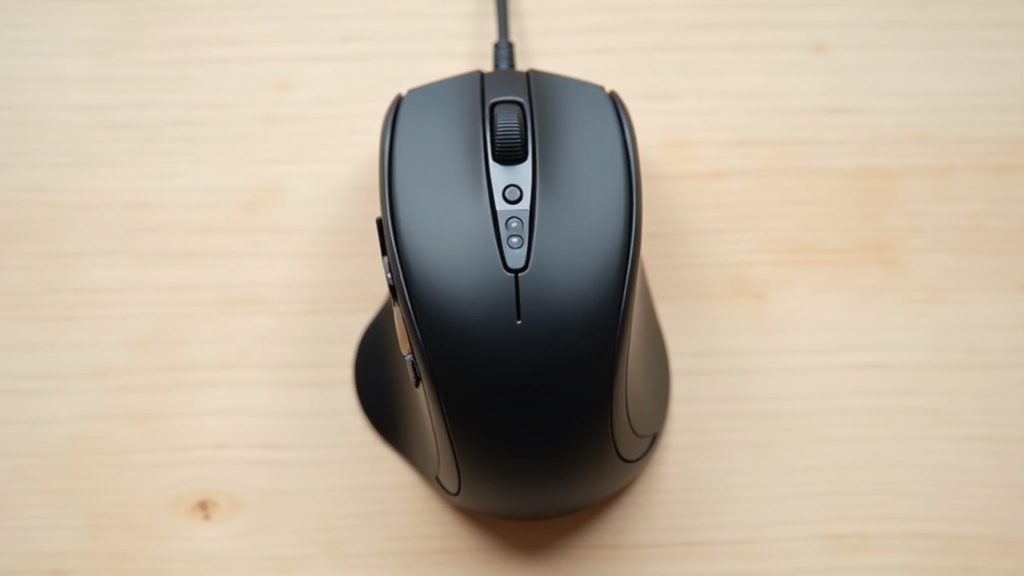
The first thing you notice when you pick it up is how composed the shell feels. The matte plastic finish resists fingerprints and doesn’t get tacky after long sessions. Without any glossy accents, it skips the flashy premium look in favor of an honest, utilitarian character. That’s a matter of taste.
A Genuine Drawback: If you have smaller hands, the depth of the body may feel like a stretch. It sits more naturally in a claw grip with your wrist resting on the desk than in a palm grip with your wrist raised — worth testing in person before buying.
Desk Stability and Footprint
Rubber pads on the underside keep the unit firmly planted. Even when you flick the ball hard, the body doesn’t slide around on the desk.
- Matte finish hides fingerprints and smudges well
- Rubber feet hold firm — no body movement during use
- All-black colorway blends into virtually any desk setup
- No glossy parts = understated look (some may find it too plain)
As for footprint, the trackball’s core design philosophy — the body never moves — means the space it occupies is exactly what you see. It won’t creep into adjacent space the way a mouse does, which is one of the category’s universal strengths. For exact dimensions, refer to the official website.
Real-World Performance Review — Precision and Feel
After getting a feel for the design, I put it through its paces over several days. The two things that matter most in any trackball review are tracking accuracy and fatigue. Here’s my unfiltered take on both.
Ball Tracking Precision and Smoothness
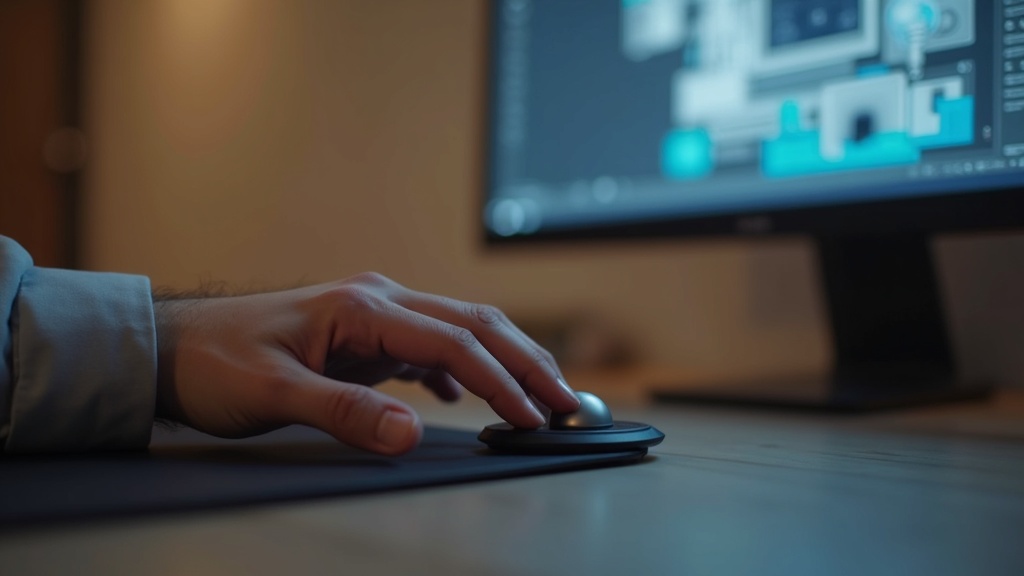
Tracking responsiveness when rolling the ball with your thumb is solid overall. There’s virtually no sense of the cursor “catching,” and sweeping across the full screen in one motion feels natural. That said, pixel-level precision did require a few days of adjustment. If graphic design is your primary use case, factor that in upfront.
On Ball Maintenance
This applies to all trackballs: skin oils accumulate on the ball surface over time and degrade smoothness. Getting into the habit of wiping it with a dry cloth once or twice a week will keep it rolling cleanly for the long term.
Click Feel and Button Layout
The left and right main buttons deliver a satisfying, well-defined click that makes accidental presses unlikely. The side buttons, however, require a bit of a thumb stretch, so pressing them simultaneously while operating the ball takes some getting used to.
- Left and right clicks are crisp and distinct — misclicks are rare
- Scroll wheel resistance is just right — easy to control
- Pressing side buttons while rolling the ball takes practice
Fatigue During Extended Use
Keeping your wrist stationary and moving only the ball eliminates the broad arm movements that a conventional mouse requires, reducing strain on your shoulders and wrists. In my experience, after two to three hours of PC work, my wrist felt noticeably less tired than with a regular mouse. That said, your thumb does take on concentrated load, so if you already have thumb discomfort, proceed with caution.
Software and Customization
Good tracking only gets you so far if you can’t remap the buttons to your workflow. The IST PRO supports Elecom’s dedicated software, letting you redefine every button from scratch.
How to Set Up the Software
Download “Elecom Mouse Assistant” from the Elecom official website. With the IST PRO connected, run the installer and the device will be recognized automatically.
If the device isn’t recognized when you launch the software, try a different USB port or close and reopen the application — that resolves the issue in most cases.
Button Customization That Actually Changes How You Work
As mentioned earlier, the IST PRO’s side buttons have a satisfying click, making them prime real estate for frequently used shortcuts. Once I started using them this way, I found myself completing tasks without ever looking away from the screen.
- Forward/Back buttons → Instead of browser history, reassign to Ctrl+Z (Undo) — a game-changer for image editing
- Wheel click → Map it to virtual desktop switching for faster window management across multiple workspaces
- Pointer speed → Set it high for dual-monitor setups and quickly swap profiles in the software when you need precision work
One honest caveat: profiles are stored in the software on your PC, not in the device’s onboard memory. Moving to a new computer means reconfiguring your settings manually. If you work across multiple machines and want identical setups on each, expect to put in some extra effort.
Drawbacks and Things to Watch Out For
The Learning Curve Is Real
Almost everyone who switches from a mouse to a trackball hits the same wall: the first few days feel awkward. Rolling a ball with your thumb to move a cursor is fundamentally different from sweeping your whole hand and arm across a mousepad.
Rough Timeline to Proficiency
- Basic use (browsing, document work): 3–7 days
- Tasks requiring fine click accuracy: 2–4 weeks
- Fluent use of shortcuts and custom button assignments: 1–2 months
Especially in the first week, you will hit moments where you think “my old mouse was faster.” The only way through is to not go back. Stick with it, and you’ll get there.
Use Cases Where It Falls Short
The IST PRO shines in desk work, web browsing, and document creation. For the scenarios below, a different input device is the more honest recommendation.
Also worth noting: the ball needs regular cleaning. When rolling starts to feel heavier than usual, that’s your cue — the surface has built up enough grime to affect glide. If you don’t mind a bit of light maintenance, it’s no big deal. But if you want zero upkeep, it’s something to keep in mind.
How IST PRO Compares to Other Trackballs
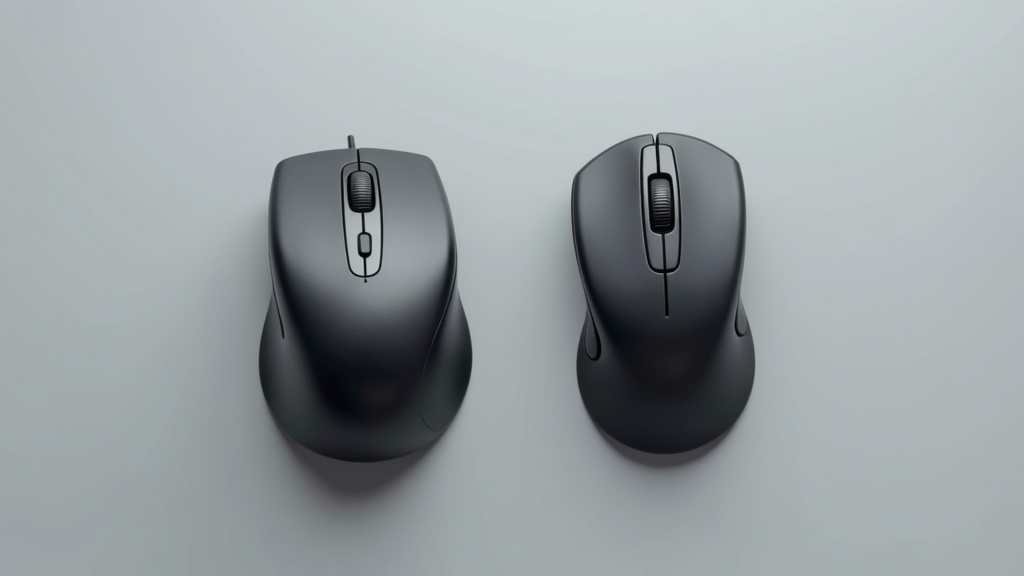
If you’re on the fence between the IST PRO, MX ERGO, and Expert Mouse, you’re not alone. Since each model has a different control style and design philosophy, there’s no clear-cut winner — the right choice comes down to your workflow and how the mouse feels in your hand.
IST PRO vs. Logitech MX ERGO
The MX ERGO uses a thumb-operated ball (thumbball) and features an adjustable tilt mechanism that lets you position the body at either 0° or 20°. While this helps keep your arm at a natural angle, the thumb tends to bear most of the workload, which can cause fatigue during extended precision tasks.
The IST PRO, on the other hand, uses a finger-operated ball controlled by your index and middle fingers. The greater range of motion in your fingertips makes it well-suited for precise cursor movement, giving it a real edge in situations where accuracy matters most — like design work or CAD operations.
How to choose: Want to minimize wrist strain above all else? → Go with the MX ERGO. Need fine-grained cursor control? → The IST PRO is your pick.
If you’re still weighing your options, it’s worth checking the current price of the Logitech MX ERGO — a go-to model in the same price range. Its adjustable tilt and tracking precision make it a strong point of comparison.
IST PRO vs. Kensington Expert Mouse
The Expert Mouse features a large ball designed to be operated with your entire palm. Its built-in scroll ring eliminates the need for a separate scroll wheel, which is a genuinely convenient touch. The trade-off is its larger footprint, which requires a fair amount of desk real estate.
The IST PRO is more compact and easier to fit into a standard desk setup. That said, for exact dimensions, we recommend checking the official product page to confirm how much space it actually takes up.
If you’re curious, check current pricing and availability on Amazon. If you want to experience the feel of a 52mm ball and its quiet switches firsthand, it’s definitely worth trying out.
Side-by-Side Comparison
| Feature | IST PRO | MX ERGO | Expert Mouse |
|---|---|---|---|
| Control Type | Finger ball | Thumb ball | Finger (large ball) |
| Precision Control | ◎ | ○ | ○ |
| Wrist Strain Reduction | ○ | ◎ | ○ |
| Tilt Mechanism | Check official site | Yes (2 levels) | No |
| Scroll Ring | No | No | Yes |
| Best For | Creators & designers | General long-hour desk work | Large multi-monitor setups |
None of these products are one-size-fits-all. The right fit depends clearly on your hand size, control style, and the type of work you do. If possible, try them out in person at an electronics store before making a decision.
If you’re still comparing options, the Kensington Expert Mouse Wireless Trackball is another strong contender in the same price range with a loyal following. As one of the long-standing classics in large-ball trackballs, it’s a great reference point for comparing grip feel and overall control.
Is the IST PRO Right for You? | A Buyer’s Checklist
Now that you’ve seen how the IST PRO stacks up against the competition, you might be thinking: “Okay, but is it actually the right fit for me?” Let’s break it down by use case and work style to help you make a confident decision.
Remote Workers & People Who Spend Long Hours at a PC
If you’re at a computer for six or more hours a day, the repetitive arm and shoulder movement from a traditional mouse can add up fast. Since trackballs don’t require you to move the device itself, they minimize motion from the elbow down — which is a big deal for long sessions.
- Your desk is small and there’s not much room to move a mouse around
- You’re proactively trying to prevent shoulder tension or repetitive strain injuries
- You frequently move the cursor across multiple monitors
- You want a clutter-free desk with no cables
Honest downside: Trackballs have a learning curve. Depending on the person, it can take one to two weeks to get comfortable with the feel. Expect a temporary dip in productivity right after switching, so it’s best not to make the change during a busy stretch at work.
Designers & Creative Professionals
For work that involves frequent path adjustments and layer manipulation, cursor precision directly affects the quality of your output. Because the IST PRO uses a finger-operated ball, your ball hand and click hand work independently — making it easier to keep the cursor steady while dragging without unwanted slipping.
- You do a lot of path editing and fine adjustments in Illustrator or Photoshop
- You need precise control over timeline scrubbing in video editing software
- You want to map shortcuts to customizable buttons to speed up your workflow
Honest downside: If you already use a drawing tablet, adding a trackball to the mix can mean more device-switching, which may actually slow you down. Think through your current workflow before committing.
Conclusion | Overall Rating of the Elecom IST PRO
Here’s a final summary of everything we’ve covered in each section. If you just want a quick verdict, this section has everything you need to make a decision.
What We Liked and What Gave Us Pause
✅ What We Liked
- Thumb-operated ball separates cursor movement from clicking, significantly reducing wrist strain even during long work sessions
- The ball rolls smoothly, making it easy to land the cursor exactly where you want it — even for precise movements
- Highly customizable side buttons let you assign functions to match your workflow
- Both Bluetooth and USB receiver support means it works with virtually any desk setup
- Elecom’s software lets you fine-tune sensitivity and button assignments in a practical, hands-on way
⚠️ What Gave Us Pause
- Removing the ball for cleaning can feel a bit fiddly until you get used to it
- First-time trackball users should expect a learning curve — typically a few days to a week before it feels natural
- The fit varies depending on hand size, so if possible, it’s worth trying one in person before buying
Final Recommendation and Where to Buy
If you’re looking to reduce mouse travel distance, cut down on fatigue, or free up desk space, the IST PRO delivers on all fronts. The drawbacks we mentioned are all things you can work around with a little adjustment and practice.
- Anyone who experiences wrist or arm fatigue during long hours at a desk
- Users who prioritize multi-device connectivity and detailed customization
- Those looking to get into trackballs and want to start with a trusted brand
If any of the above sounds like you, there’s a good chance you won’t regret this purchase. To check the latest specs and pricing before you buy, visit the official Elecom website or the product page on your preferred online retailer.