What You Need to Know Before Choosing a Smart Lock
What Is a Smart Lock? How Retrofitting Your Lock Changes Daily Life
If you’ve ever thought “carrying keys around is such a hassle” or found yourself missing package deliveries time and time again — chances are that’s what led you to start looking into smart locks.
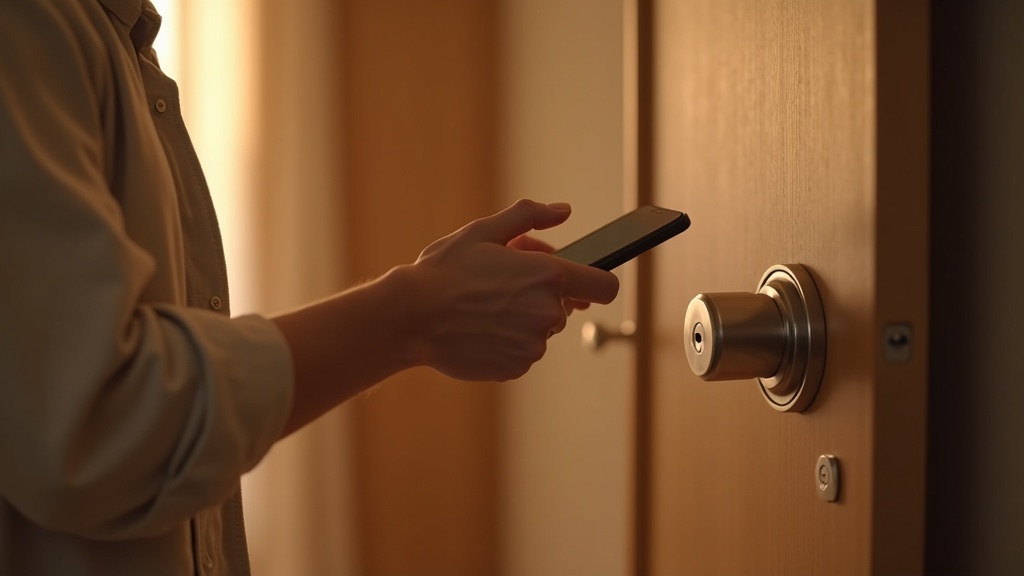
A smart lock is a smart device that retrofits onto your existing door’s thumb turn (the interior knob). It lets you lock and unlock your door with your smartphone, an IC card, or a voice assistant, and many models let you check your door’s open/close history right in the app.
One of the biggest changes is how you share access with others. You can issue and revoke temporary digital keys for family members or service workers directly from the app — no need to cut physical copies of your keys.
Key Ways a Smart Lock Will Change Your Routine
- Hands-free unlocking (auto-unlock and touch-to-unlock)
- Check and remotely control whether you left the door locked
- Issue temporary digital keys for family or guests
- Integration with parcel lockers and drop-off delivery (select models only)
Can I Use One in a Rental? The Basics on Restorability and Installation
Many people assume that renting means no modifications allowed — but today’s mainstream smart locks are designed to install without any drilling or permanent alterations.
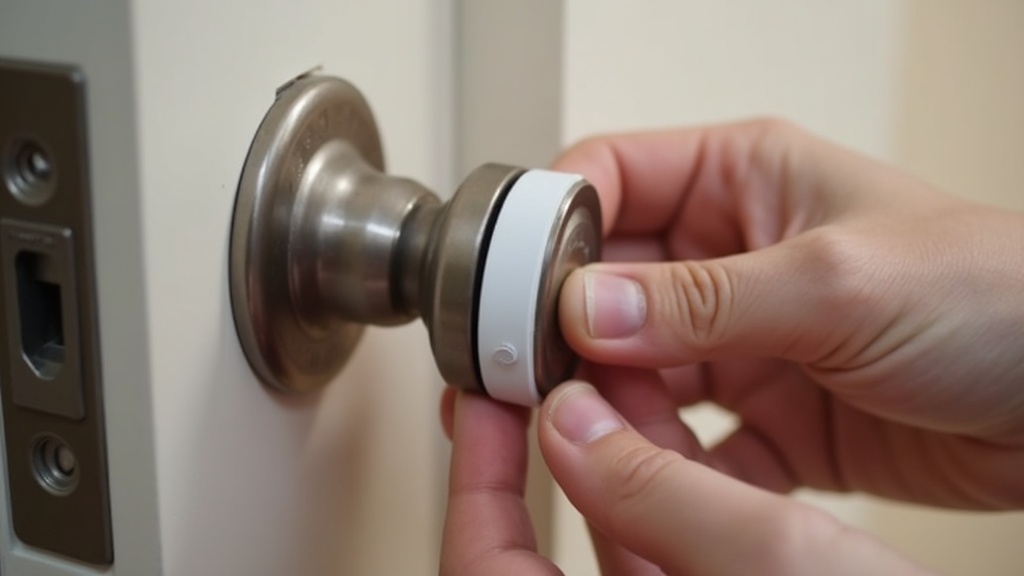
There are two main installation methods. The clamp-on type fits directly over the thumb turn on the inside of your door, and the adhesive type uses double-sided tape or a dedicated mounting plate. The clamp-on style leaves no marks on your door and can be completely removed when you move out.
That said, some older buildings or doors with unusual shapes may not have a thumb turn at all, or the door thickness may fall outside the supported range. Before buying, always cross-check your thumb turn’s shape and dimensions against the product’s compatibility chart.
How to Choose Without Regrets: 5 Things to Check
Smart locks are surprisingly easy to get wrong when you just “grab a well-known brand.” Reviews are full of complaints like “unlocking is too slow” or “the battery dies so fast.” Make sure to check all five of the following before you buy.
- Thumb turn compatibility: Confirm your thumb turn’s height and width fall within the supported range
- Unlock methods: Does it support only a smartphone, or also IC cards, PIN codes, and fingerprints?
- Remote access: Many models require a separate Wi-Fi bridge to control the lock from outside your home
- Battery life: Ranges from a few months to over a year depending on the model — also check how to manually unlock if the battery dies
- Auto-lock feature: Prevents you from forgetting to lock up, but comes with a risk of getting locked out — check how flexible the settings are
The Wi-Fi bridge is an easy cost to overlook. If remote access is important to you, compare the total cost including the bridge — not just the price of the lock itself.
Best Smart Locks of 2026: Top 6 Picks Compared
Now that you know what to look for, let’s dive into the actual products. We’ve evaluated each one across three dimensions: price, features, and ease of installation. Whether you want maximum functionality or the most budget-friendly option, this list is organized to help you find the right fit.
① SwitchBot Lock Pro — Hands-Free Unlocking + Fingerprint Auth, Most Feature-Rich
SwitchBot’s flagship model, released in late 2023. What sets it apart is the sheer number of ways you can unlock your door: fingerprint pad, keypad, key card, and smartphone app. The dual-motor design delivers more consistent thumb-turn rotation, making it a better fit for stiff locks — a notable upgrade from the previous model.
Who it’s best for
- Households where each family member wants a different unlock method
- Homes with kids or elderly residents who need PIN-based access
- Anyone already using SwitchBot devices
Drawbacks & things to watch out for
- The unit is fairly bulky — it may interfere if the gap between your door and wall is tight
- The fingerprint pad is sold separately, so going full-featured adds up in cost
- Some users report that hands-free unlock accuracy isn’t quite as reliable as Qrio Lock
Check the latest pricing and full specs on the SwitchBot official website.
SwitchBot Lock Pro retrofits onto your existing lock without any permanent modifications. Visit the official product page for the latest pricing and detailed specifications.
② Qrio Lock (Q-SL2) — Best Hands-Free Accuracy with Reliable Japanese Support
A go-to choice from Qrio, a Sony Group company. Qrio Lock is consistently praised for its hands-free unlock accuracy — just keep your phone in your bag and the door unlocks as you approach. You also get the peace of mind that comes with Japanese-language customer support and a solid warranty, making it a trustworthy long-term investment.
Who it’s best for
- People carrying lots of bags who don’t want to dig out their phone every time
- Users who prefer customer support in English (or their native language)
- Those who value a clean, minimal aesthetic
Drawbacks & things to watch out for
- No built-in fingerprint reader (keypad support requires the separately sold Qrio Pad)
- Not compatible with SwitchBot products
- No open API, so custom integrations aren’t an option
Check the latest pricing and compatible thumb-turn sizes on the Qrio official website.
For the latest pricing and supported lock types, check the official product page or retailer listings. Be sure to measure your thumb-turn before purchasing to confirm compatibility.
③ SESAME 5 Pro — Best Value + Open API for Maximum Customization
The flagship model in CANDY HOUSE’s SESAME lineup. It punches well above its price point, offering fingerprint authentication and multiple unlock methods at a fraction of the cost of competing options. What really makes it stand out for smart home enthusiasts is its open API — you can build custom automations using Node-RED, Home Assistant, and more, making it a favorite among tinkerers and DIY home automation builders.
Who it’s best for
- Anyone who wants full features without spending a lot
- Home Assistant or API automation users
- People who want to build out a fully customized smart home
Drawbacks & things to watch out for
- Customer support can feel thin compared to Qrio
- The Wi-Fi hub is sold separately — required for remote access when you’re away from home
- The app UI has a unique design that takes some getting used to
If you’re looking for a model with fingerprint and facial recognition, check the latest pricing and specs for the SESAME 5 Pro.
④ SESAME 5 — The Affordable Entry Point into Smart Locks
The standard SESAME 5 is essentially the SESAME 5 Pro without the fingerprint reader. If you’re curious about smart locks and want to start simple with Bluetooth and app-based control, the attractive price tag makes it an easy first step. It’s frequently recommended as a “starter lock” for those who just want to dip their toes in without overcommitting.
Who it’s best for
- First-time smart lock buyers who want to try it out
- Users who don’t need a fingerprint reader or keypad — app control is enough
- Anyone on a tight budget
Drawbacks & things to watch out for
- No fingerprint or keypad support means your unlock options without a phone are limited
- Remote access requires purchasing the SESAME Wi-Fi module separately
Check the SESAME 5’s latest pricing and compatibility details on the official website. Sales happen periodically, so it’s worth keeping an eye out if you’re on the fence about buying.
⑤ SwitchBot Lock — Simple to Use, Great for Beginners
The entry-level model in the SwitchBot lineup. It works with a wide range of platforms — the SwitchBot app, Alexa, Google Assistant, and Siri Shortcuts — making it an easy fit for homes already running a smart speaker. One thing to note: it uses a single-motor design, so it may struggle with particularly stiff thumb-turns compared to the Pro model.
Who it’s best for
- Users already invested in the SwitchBot ecosystem
- Households that regularly use Alexa or Google Assistant for voice control
- Anyone who wants a straightforward setup and doesn’t need advanced features
Drawbacks & things to watch out for
- Weaker motor than the Pro — may be unreliable on doors with stiff thumb-turns
- No built-in fingerprint reader or keypad (available via separately sold accessory pad)
SwitchBot Lock offers excellent value among retrofit smart locks, with native Alexa and Google integration included. Check the official page for the latest pricing and full specs.
⑥ Qrio Lock S — Compact Design for Tight Door Clearances
Qrio’s smaller form-factor model, designed specifically for doors where the gap between the door and door frame is too narrow for a standard smart lock. If you’ve tried other models and couldn’t get them to fit, the Qrio Lock S may be the solution. Feature-wise it’s identical to the standard Qrio Lock — the only real difference is the compact body.
Who it’s best for
- Anyone who couldn’t fit other smart locks due to a tight door frame clearance
- Those who prefer a discreet, low-profile look
- Users who still want Qrio’s reliable hands-free unlock and support
Drawbacks & things to watch out for
- Supported thumb-turn size range may be narrower than the standard Qrio Lock — always verify compatibility on the official site before buying
- Less widely distributed than the standard model, with fewer real-world user reviews available
Check the compatible thumb-turn size specifications on the Qrio official website‘s compatibility confirmation page.
For the latest pricing and supported lock types for Qrio Lock S, visit the official product page before installation to confirm your door is compatible.
Specs & Features Comparison Chart
Checking each product’s specs individually across multiple catalog pages is a hassle. This section puts all six products side by side so you can compare the key specifications at a glance and zero in on the factors that matter most to your decision.
Unlocking Methods, Auto-Lock, and Remote Access Support
The variety of unlocking methods matters a lot depending on your household and how you use the lock. Smartphone control alone may be enough for some, but homes with children or elderly family members may need a keypad or card key as well.
Important Note: Many products require a separate Wi-Fi module or hub to enable remote access. Make sure you know what’s included before buying — don’t end up with a lock you can’t fully use.
| Product | Smartphone Unlock | Keypad / PIN | Card / IC Key | Auto-Lock | Remote Access |
|---|---|---|---|---|---|
| SwitchBot Lock Pro | ○ | ○ (keypad sold separately) | ○ (sold separately) | ○ | ○ (hub required) |
| SwitchBot Lock | ○ | ○ (keypad sold separately) | ○ (sold separately) | ○ | ○ (hub required) |
| Qrio Lock Q-SL2 | ○ | △ (separate keypad) | △ (sold separately) | ○ | ○ (Wi-Fi built-in) |
| SESAME 5 | ○ | ○ (touch keypad sold separately) | △ (sold separately) | ○ | ○ (Wi-Fi module sold separately) |
| SESAME 5 Pro | ○ | ○ (touch keypad sold separately) | △ (sold separately) | ○ | ○ (Wi-Fi module sold separately) |
| Qrio Lock Q-SL1 | ○ | × | × | ○ | ○ (Qrio Hub required) |
Battery Life, Compatible Lock Types, and Price Range
Battery life varies significantly depending on usage frequency and temperature, so treat manufacturer estimates as a rough guideline. Cold entryways or north-facing metal doors in particular can drain batteries faster than the published figures suggest.
| Product | Battery Life (Manufacturer Estimate) | Compatible Lock Type | Price Range | Installation Method |
|---|---|---|---|---|
| SwitchBot Lock Pro | See official website | Thumbturn (multiple shapes supported) | See official website | Adhesive tape |
| SwitchBot Lock | See official website | Thumbturn | See official website | Adhesive tape |
| Qrio Lock Q-SL2 | See official website | Thumbturn | See official website | Adhesive tape |
| SESAME 5 | See official website | Thumbturn | Budget-friendly | Adhesive tape |
| SESAME 5 Pro | See official website | Thumbturn (large sizes supported) | See official website | Adhesive tape |
| Qrio Lock Q-SL1 | See official website | Thumbturn | See official website | Adhesive tape |
About Pricing & Specs: Smart lock models and prices change frequently. Always check the manufacturer’s official website and major online retailers for the latest information before purchasing. The SESAME series in particular tends to go on sale often, so actual prices can fluctuate quite a bit.
All six products share one common advantage: they install with adhesive tape, making them compatible with rental apartments without permanent modifications. That said, whether your specific lock shape is supported varies by model — use the compatibility checker on each product page to confirm before buying.
Complete Installation Guide — Safe for Rentals Too
A common concern is: “I bought a smart lock, but I’m not sure I can install it.” In reality, installation methods vary significantly between products, and skipping the pre-install check can leave you with a device you can’t use. Here’s a step-by-step breakdown by installation type.
Adhesive Tape Installation (SwitchBot & SESAME)
Most SwitchBot and SESAME locks attach by fitting over your existing thumbturn — the knob you turn to lock and unlock the door. No drilling required, which means renters can install them without worrying about restoring the door to its original condition.
-
STEP 1
Measure Your Thumbturn
Use a tape measure to get the width, height, and depth of the thumbturn. Cross-reference these dimensions with the compatibility chart on the product’s official page to make sure it falls within the supported size range. -
STEP 2
Select and Test the Adapter
SESAME locks come with multiple adapters included. Hold each one against your thumbturn and choose the one that fits snugly without any wobble and rotates smoothly. -
STEP 3
Apply the Tape and Mount the Device
Wipe down the door surface with alcohol to remove any oils before applying the tape. If the adhesive doesn’t bond properly, the unit can slip during locking. Press it firmly and let it set for 24 hours if possible. -
STEP 4
Pair with the App and Test
Run at least five lock and unlock cycles to confirm the thumbturn rotates fully each time. If it stalls partway through, try a different adapter.
Warning
Adhesive tape loses its holding strength in cold temperatures. If your front door faces north or is made of metal, be especially careful — consider adding a reinforcing adhesive sheet for extra security.
Screw-Mount Installation (and Notes for Qrio)
Current Qrio Lock models don’t use screws — they clamp onto the thumbturn via an attachment bracket. However, some replacement-style smart locks do require screw mounting. Here’s what to know for that type of installation.
-
STEP 1
Remove the Existing Thumbturn
Take a photo of the screw positions with your phone before removing anything. Keep the screws in a small bag so you can reinstall them later if needed. -
STEP 2
Adjust the Spacer and Base Plate
The base plate height may need adjusting depending on your door thickness. Use a level to ensure everything is flat — any wobble can cause the lock to malfunction. -
STEP 3
Test the Lock and Fine-Tune
Manually verify that the deadbolt extends and retracts fully. Also test the manual unlock in case the battery dies — this is a must.
Installing a Screw-Mount Lock in a Rental
Removing the existing thumbturn may violate your lease’s restoration requirements. Before doing anything, get written permission from your property manager or landlord.
Incompatible Lock Types — What Won’t Work and How to Check
The last thing you want is to discover after purchase that your lock isn’t supported. The following configurations are not compatible with most smart locks:
- Locks with no thumbturn — cylinder-only operation (common in older buildings)
- Unusual thumbturn shapes (non-standard, oval, or oversized)
- Double-cylinder locks with two thumbturns stacked vertically — some smart locks only support one
- Specialized cylinders from brands like MIWA or GOAL where third-party attachments may be prohibited
- Thumbturns that sit too flush with the door surface, causing the smart lock body to interfere
Pre-Purchase Checklist
- Measure the thumbturn dimensions (width, height, depth) and compare with the product’s compatibility chart
- Check the clearance between the door surface and the base of the thumbturn
- Look up your lock’s brand and model number, then verify it appears on the product’s tested compatibility list
- Check your door material (wood, metal, aluminum) and surface condition (painted, film-covered, etc.)
Most manufacturers provide a compatibility checker or a verified lock list on their official websites. Look up your lock’s model number before buying.
How to Choose by Feature Priority
Once you’ve confirmed the installation method, the next step is narrowing down your options by which features matter most. Smart locks have distinct strengths depending on the model. Picking one that doesn’t fit your use case means you’ll end up pulling out your phone more than you expected — defeating the purpose of going smart.
If Hands-Free Unlocking and Auto-Lock Are Your Top Priority
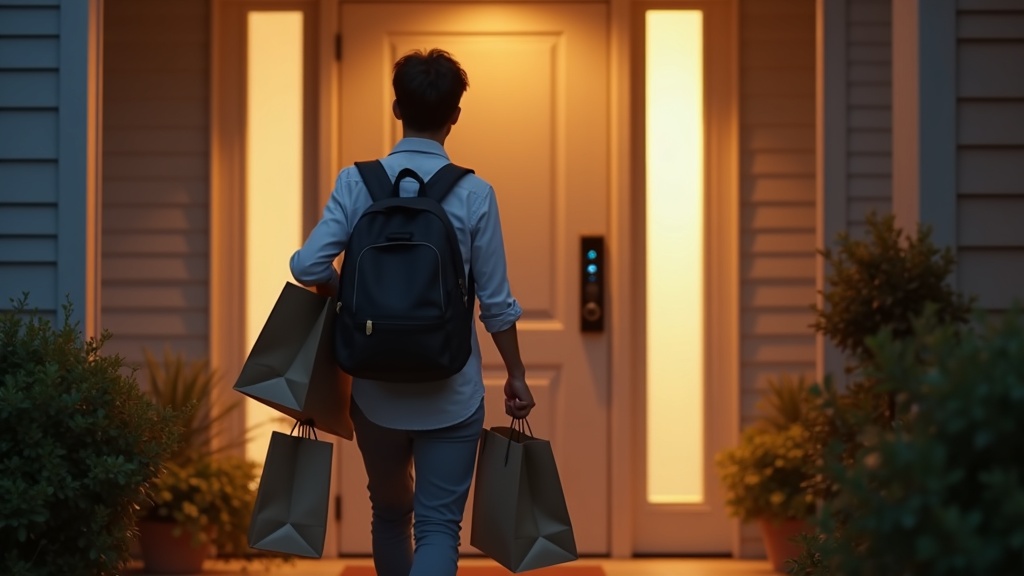
For anyone who wants to walk in without fumbling for their phone — especially when carrying bags — hands-free unlocking via GPS or Bluetooth detection is the feature to look for, along with a reliable auto-lock function.
What to look for in a model built for this
- Granular auto-lock timing settings in the companion app
- Hands-free unlocking via GPS geofencing or Bluetooth proximity detection
- Real-time lock/unlock history viewable in the app
Auto-lock is convenient, but it comes with a lockout risk. Always carry a physical key as a backup, and double-check the unlock delay settings before enabling it.
If You Want to Keep Costs Down
If you just want to give smart locks a try without a big commitment, check both the upfront cost and ongoing expenses — battery replacements and any cloud subscription fees.
Cost factors to evaluate
- Whether a hub (separate Wi-Fi adapter) is required on top of the base unit price
- Whether there’s a monthly or annual subscription fee
- Battery life and replacement frequency — this varies a lot between models
The SESAME series tends to have a lower entry price and is popular among budget-conscious first-time buyers. Just keep in mind that remote access requires a separately purchased Wi-Fi module.
If You Need Family Sharing or Guest Key Access
When multiple people need to share a lock — giving every family member access, or issuing a temporary key to a guest — the quality of the companion app becomes a direct reflection of how smooth the experience will be.
- Whether permissions can be granted and revoked instantly through the app
- Whether guest keys can be set with expiration dates or time-of-day restrictions
- Whether lock/unlock history can be shared and viewed by all family members
The Qrio and SwitchBot Lock series both have well-developed apps for these use cases. That said, guest key features are sometimes limited to higher-end models or require a hub, so check the official specs before purchasing.
If Smart Home Integration (Alexa, Google Home) Is a Priority
If you want to lock up with a voice command or tie the lock into your home automation routines, checking platform compatibility should be your first step.
Things to confirm before integrating
- Which platforms are supported: Alexa, Google Home, or Apple HomeKit
- Whether voice commands can unlock the door — some models restrict voice control to locking only for security reasons
- Whether the lock can be used in routines and automation workflows
Voice unlocking does carry security risks, so look for models that require a PIN confirmation before executing an unlock command. The SwitchBot series paired with the SwitchBot Hub has a strong track record for Alexa and Google Home integration, making it a natural fit if you’re already in the SwitchBot ecosystem.
App & Integration Usability Comparison
Now that the core lock/unlock experience has become largely consistent across brands, the deciding factor is increasingly the daily-use experience: app UI, activity history, and permission management.
SwitchBot App: Usability and Compatible Devices
The biggest strength of the SwitchBot app is the breadth of its ecosystem beyond just the lock. You can manage the company’s smart plugs, curtains, lighting, thermometers, and more from a single app — making it a straightforward choice for anyone looking to build out a smart home step by step.
Supported Integrations (Major Services)
- Amazon Alexa, Google Home, Apple HomeKit (Matter)
- Automation via IFTTT
- Remote access via SwitchBot Hub
On the flip side, the app is information-dense, and users who only want to use the lock may find the settings overwhelming. If you’re not running multiple devices, competing apps may win on simplicity.
Qrio Home App: Activity History and Permission Management
Where Qrio really shines is in the readability of its lock/unlock history and its granular guest permission settings. You can see exactly who opened the door, when, and how — displayed in a clean timeline view — and issue time-limited guest access keys for family members or service workers.
What You Can Do with Permission Management
- Restrict access to specific days of the week and time windows
- Issue one-time keys (time-limited guest invitations)
- Distinguish between permission levels (Admin / Member)
For apartment management or situations where contractors come and go regularly, Qrio’s permission system is genuinely practical. Just keep in mind that full functionality requires pairing with a Qrio Hub, which pushes the total cost of entry higher than competitors.
SESAME App: Open API Use Cases
SESAME’s standout differentiator is its open API. The company publicly provides developer documentation, making it possible to build custom integrations with DIY apps or home automation tools like Home Assistant and Node-RED on your own.
Real-World Open API Examples
- SESAME integration with Home Assistant (community plugins available)
- Slack notifications and custom logging via webhooks
- DIY facial recognition unlock using a Raspberry Pi
The stock app itself is on the simpler side compared to the other two, but SESAME is in a class of its own when it comes to customization potential. If you have programming experience or want to fold it into an existing smart home setup, definitely check out the official developer documentation.
Common Questions & Troubleshooting FAQ
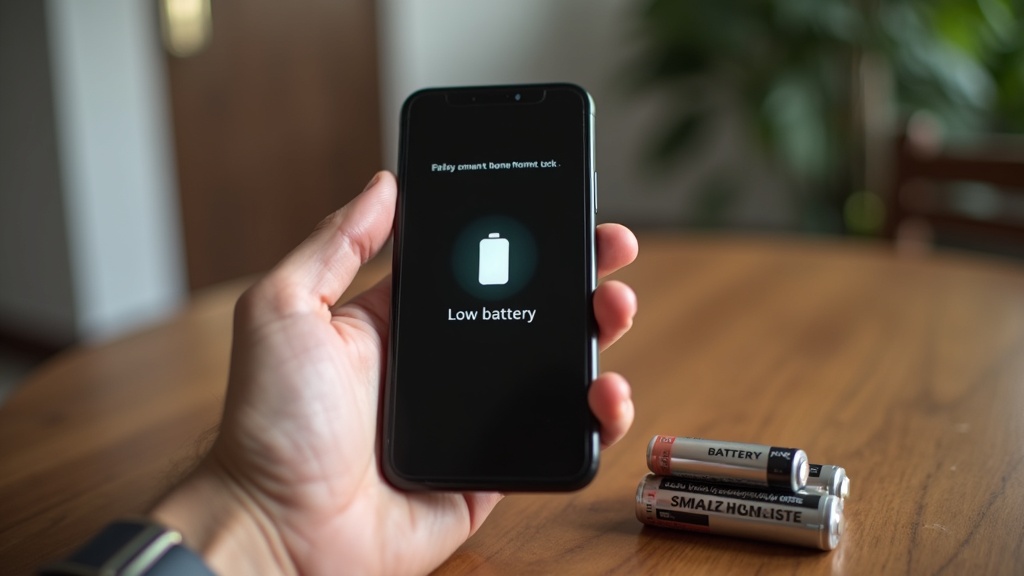
Right before buying, a lot of people hesitate: “But what if the battery dies?” or “Will it even fit my apartment door?” These are classic smart lock worries. Here are honest answers to the most common pre-purchase concerns.
If the Battery Dies, Can I Still Get In?
Short answer: Yes. Nearly all major smart locks still allow physical key access when the battery is dead.
SwitchBot, Qrio, and SESAME all mount over your existing thumbturn, leaving the key cylinder intact. The app will also notify you when battery levels run low, so you should have plenty of warning before a full discharge.
If you’re already out and realize the battery is dead, you can unlock with your physical key and swap the battery from inside. The appeal of smart locks is not having to carry a key — but keeping one spare in your wallet is a smart backup plan.
Does It Work Without Wi-Fi? How Far Does Bluetooth Reach?
Bluetooth-only models don’t require Wi-Fi, which is a plus — but your phone needs to be within a few meters of the door for the app to connect. Remote unlocking and activity history from outside your home require a Wi-Fi hub or gateway.
- Bluetooth only: Works when you’re close to the door. No remote access.
- With Wi-Fi hub: Enables smartphone remote control, voice assistant integration, and auto-lock features.
If you’re planning to unlock the door remotely for a family member or use it as a package delivery solution, it’s more realistic to budget for the Wi-Fi hub upfront rather than treating it as an optional add-on.
Can It Be Used on Shared Apartment Entrances or Auto-Lock Doors?
Unfortunately, major smart locks are designed exclusively for your own unit’s interior thumbturn. Retrofitting them onto shared building entrances or auto-lock lobby doors is essentially not possible — both structurally and under most building regulations.
That said, installing one on your own unit door is generally permitted in apartments that allow “reversible modifications.” The adhesive-tape mounting and no-drill designs exist precisely for this reason. Before installing, we strongly recommend checking with your building management association or property manager.
If you’re unsure whether your door is compatible, contact the manufacturer’s support team with your door thickness, thumbturn shape, and whether you rent or own — they can walk you through compatibility.
Conclusion | The Top 3 Smart Locks to Choose From in 2026
Battery anxiety, lockout risk, Wi-Fi availability — we’ve covered the common concerns in the previous section. Here’s a final recommendation by use case for anyone who’s still on the fence after reviewing the specs.
Final Decision Chart: Which One Is Right for You?
You want the easiest smartphone experience → SwitchBot Lock
App integration works without a dedicated hub, and installation is as simple as sticking it onto your existing thumbturn. For first-time smart lock buyers, this is the lowest-risk choice.
You care about design and quiet operation → Qrio Lock
A domestic brand with a refined look and reassuring build quality. Its near-silent operation makes it especially well-suited for late-night arrivals or apartment living.
You want auto-lock without breaking the bank → SESAME 5
Affordable hardware and a highly flexible app. Add the optional Wi-Fi adapter and you’ll have full remote access from anywhere.
Pre-Purchase Checklist
Checklist
- Does your door use a thumbturn? (If cylinder replacement is required, verify separately)
- Is your door thickness within the product’s supported range?
- If you’re in an apartment, does your lease or building rules allow door modifications?
- If you want remote access, do you know whether a Wi-Fi hub or additional device is needed?
- Have you discussed emergency physical key procedures with your household?
Check all of these boxes, and you’ll avoid most post-installation headaches. Always confirm the latest pricing and door compatibility on each brand’s official website before purchasing.