What Is a DAW? Essential Basics Every Beginner Should Know
When you start researching how to make music, one term that almost always comes up is DAW. If you’ve ever felt confused by this unfamiliar word, you’re not alone. Getting a clear understanding of what a DAW is will make choosing the right software much easier down the road.
The Core Role of a DAW (Digital Audio Workstation)
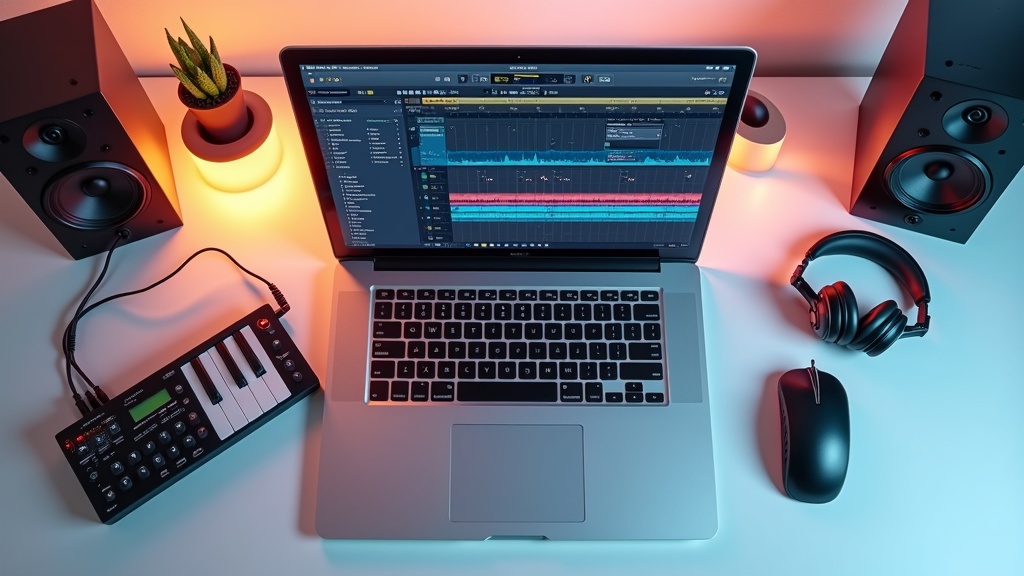
A DAW is an all-in-one software environment where every step of the music production process — recording, editing, mixing, and mastering — happens in a single interface.
Tasks that once required a full professional studio with expensive hardware can now be done on a single laptop. A DAW is essentially a “digital recording studio” right on your computer.
Key Features of a DAW
- MIDI input and editing (piano roll)
- Audio recording and waveform editing
- Loading and playing software instruments (plugins)
- Mixing tracks and applying effects
- Exporting the final audio file (bouncing)
If you want to experience Cubase’s professional workflow without breaking the bank, check out the pricing and included features of the Elements edition. It also offers an upgrade path to higher tiers, making it a smart choice if you’re thinking about long-term growth.
3 Common Mistakes Beginners Make When Choosing a DAW
Many beginners fall into the same traps when picking a DAW. Knowing what to watch out for ahead of time can save you money and frustration.
Pro Tools and Logic Pro are industry standards, but if they don’t fit your workflow or setup, you’ll never get the most out of them.
Since the interfaces and workflows can differ significantly, you often end up having to learn from scratch twice — doubling the time investment.
In the long run, how well the UI fits your production style and target genre matters far more than raw specs.
In the next section, we’ll take a closer look at what makes each DAW unique. As you read, think about how each one lines up with your own creative goals.
5 Checkpoints to Avoid Buyer’s Remorse When Choosing a DAW
It’s surprisingly common to buy a DAW only to discover it doesn’t run on your system, or that a key feature requires an additional paid plugin. Since these tools aren’t cheap, it’s worth knowing exactly what to look for before you buy.
5 Things to Verify Before Purchasing
- Compatibility with your operating system
- Limitations of the free or trial version
- How well it fits the genre of music you want to make
- Quality and variety of bundled instruments and effects
- Availability of English support and learning resources
Windows vs. Mac Narrows Your Options Right Away
OS compatibility is the first filter to apply. Logic Pro is Mac-only, so Windows users are immediately ruled out. Cubase, Studio One, and Ableton Live, on the other hand, are all cross-platform and work on both Windows and Mac.
If you’re planning to switch computers in the future, it’s wise to factor that into your decision. In particular, if there’s any chance you might move from Mac to Windows, going with a cross-platform DAW from the start is the safer bet.
For the latest pricing and a full list of included plugins for FL Studio All Plugins Bundle, check the official website. Since it uses a lifetime license (one-time purchase), it’s worth factoring in long-term value when comparing your options.
FL Studio All Plugins Bundle
Always Check What the Free or Trial Version Actually Limits
Just because a DAW says “free to use” doesn’t mean you can do everything. Restrictions vary widely — some prevent you from saving projects, limit the number of tracks, or disable the export function entirely, making it impossible to finish a real song.
A Common Free Version Pitfall
Some DAWs lock you out of previously saved projects once the trial period expires. Make sure to run through the full workflow — all the way to exporting — while you still have access.
Genre Compatibility: Does the DAW Match Your Style?
Every DAW has genres where it naturally excels. For electronic music and loop-based production, Ableton Live’s Session View is uniquely intuitive. For band recordings, orchestral arrangements, or any audio-heavy work, Logic Pro and Cubase offer more robust audio editing tools.
Rather than just picking a well-known DAW, the smarter move is to choose the one most commonly used by creators making the kind of music you want to make. The availability of tutorials and community resources is also a major factor worth considering.
【2026 Edition】Top 6 DAW Software Compared
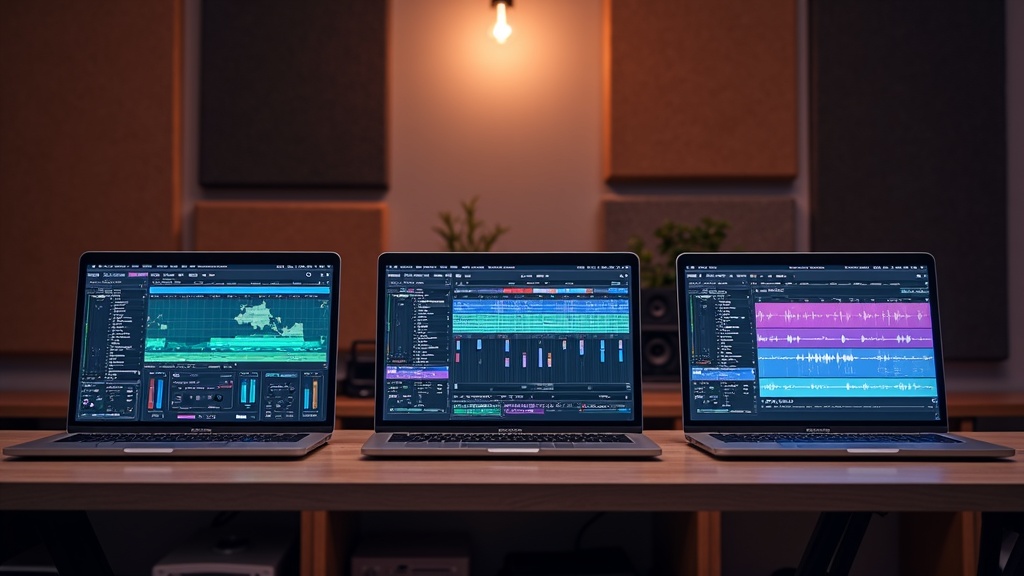
Using the key criteria from the previous section — OS compatibility, price, learning curve, genre fit, and free trial availability — let’s take a closer look at the six most popular DAWs right now. Rather than picking one just because it’s well-known, think about whether it actually matches your workflow and style as you read through each one.
Logic Pro | The Go-To DAW for Mac Users with Unbeatable Value
When Mac users start looking for a DAW, Logic Pro is almost always the first name that comes up. It’s a one-time purchase through the App Store, so you don’t have to worry about ongoing subscription fees adding up. The bundled plugins and sound libraries are among the best in the industry, meaning you can start making professional-quality music right out of the box without buying any extras.
Logic Pro at a Glance
- OS: macOS only
- Price: $199.99 (one-time purchase, App Store)
- Learning Curve: Intermediate (easy transition from GarageBand)
- Best For: Pop, rock, film scoring, and virtually any genre
Downsides: Not available on Windows. If you think you might switch to a PC down the road, you may want to consider a cross-platform DAW instead. Also, the sheer number of features means there’s a real learning curve before you feel fully at home.
If you’ve been using GarageBand and are ready to take things to the next level, the shared UI makes the transition surprisingly smooth. If you’re on a Mac, Logic Pro should absolutely be at the top of your list.
Check the Apple website for the full feature breakdown and current pricing. If you’re on a Mac, there’s also a 90-day free trial available — a huge advantage that lets you try before you buy.
GarageBand | The Free, Beginner-Friendly DAW for Mac and iOS
If you want to start making music without spending a dime, GarageBand is the most realistic first step. It works on both Mac and iPhone, so you can sketch out an idea on your phone while you’re out and then flesh it out on your Mac when you get home — a workflow that feels completely natural.
GarageBand at a Glance
- OS: macOS and iOS (completely free)
- Price: Free
- Learning Curve: Low (great for complete beginners)
- Best For: Getting started, idea sketching, pop music
Downsides: GarageBand isn’t cut out for serious mixing and mastering. As your productions get more complex, you’ll start bumping into limitations like track count caps and basic automation tools. Think of it as a great starting point, not a long-term home.
That said, one of GarageBand’s biggest advantages is that your projects carry over directly to Logic Pro. You can open a GarageBand song in Logic Pro and pick right up where you left off — no extra steps needed.
The fact that GarageBand is completely free yet capable enough to satisfy many pros makes it a genuinely impressive option. Head to the official site to see everything it has to offer.
Ableton Live | The Industry Standard for Live Performance and Electronic Music
Ableton Live’s signature feature is its Session View — a unique layout designed for combining loops and performing or arranging music in real time. It’s been a staple for DJs and electronic music artists who perform live on stage for decades.
Ableton Live at a Glance
- OS: Windows and macOS
- Price: Three editions — Intro, Standard, and Suite (see official site for pricing)
- Learning Curve: Intermediate (the Session View concept takes some getting used to)
- Best For: Techno, house, ambient, live performance
Downsides: The score editor is limited, so it’s not the best choice if you’re focused on detailed notation or programming live instruments. Also, the higher-tier editions get pricey, so make sure you know which features you actually need before committing.
If electronic music or loop-based production interests you, try the Ableton Live trial (90 days) to get a feel for its one-of-a-kind workflow before buying.
Check the official site for a full feature list and current pricing. There’s also a free trial available, so you can experience the workflow firsthand with no risk.
Cubase | The Veteran DAW Built for Composing, Arranging, and Recording
First released in 1989, Cubase has been a fixture in professional studios — including many in Japan — for decades. Its MIDI programming precision is exceptional, making it especially popular among composers and arrangers who work with orchestral arrangements and complex chord progressions.
Cubase at a Glance
- OS: Windows and macOS
- Price: Three editions — Elements, Artist, and Pro (see official site for pricing)
- Learning Curve: Intermediate to Advanced (feature-rich, which means a steeper learning curve)
- Best For: Classical, film scoring, band recordings, and general recording work
Downsides: The UI can be overwhelming for beginners trying to learn on their own — it’s easy to get discouraged in the early stages. There’s a solid library of books and video tutorials available in English, which helps, but expect a tough first few weeks.
If your goal is to eventually work at a professional level, Cubase is worth considering as a long-term investment.
Check the official site for the latest pricing and detailed specs on Cubase Artist. Compared to the Pro version, Artist is significantly more affordable while still covering nearly everything a beginner to intermediate user needs — making it a strong value pick.
Studio One | Rising in Popularity Thanks to Its Intuitive UI and Powerful Free Version
Since its debut in 2009, Studio One has been steadily winning over new users. Its drag-and-drop-centric interface is designed to be approachable, and even musicians coming from other DAWs tend to get comfortable with it quickly.
Studio One at a Glance
- OS: Windows and macOS
- Price: Three tiers — Prime (free), Artist, and Professional
- Learning Curve: Low to Intermediate (clear feature differences between free and paid)
- Best For: Pop, rock, singer-songwriters, band recording
Downsides: The free Prime version doesn’t support third-party plugins (VST), so you’re limited to the built-in sounds and presets. When you’re ready to expand your sonic palette, you’ll need to upgrade to a paid tier.
Since you can try Prime for free before committing to a paid version, it’s one of the lowest-risk options out there for anyone who doesn’t want to make a costly mistake.
Visit the official site to learn more about what Studio One Prime offers for free. It’s one of the easiest ways to get into DAW-based music production without spending a cent upfront.
FL Studio | The Loop-Driven DAW Built for Beat Making and EDM
FL Studio is a favorite among hip-hop producers and EDM creators, known for its exceptionally user-friendly piano roll and pattern-based composition workflow. One of its most celebrated features is its lifetime free update policy — buy it once and you get every future version upgrade at no extra cost, which longtime users absolutely love.
FL Studio at a Glance
- OS: Windows and macOS
- Price: Multiple editions available (see official site for pricing) — all include lifetime free updates
- Learning Curve: Intermediate (takes time to get comfortable with pattern-based thinking)
- Best For: Hip-hop, trap, EDM, beat making in general
Downsides: Not well-suited for band recording or orchestral programming. The entire software is designed around a loop-and-pattern workflow, so if that’s not your style, you’ll find yourself working against the grain.
If you have a clear goal — like “I want to start making beats” or “I want to crank out hip-hop tracks” — FL Studio is a genuinely smart choice. There’s a trial version available on the official site, so give it a look.
Visit the official site to check the latest pricing and included features. You’ll also find details on the perpetual license and free upgrade policy — all important things to understand before you buy.
Side-by-Side DAW Comparison: All 6 at a Glance
Reading through individual reviews can make it hard to figure out which DAW is actually right for you. Here’s a cross-comparison of all 6 options to help you narrow down your choice.
OS Compatibility, Pricing & Free Version Availability
| DAW | Supported OS | Price Range | Free Version |
|---|---|---|---|
| GarageBand | Mac / iOS only | Completely free | ◎ (the full app is free) |
| Logic Pro | Mac only | $199.99 (one-time purchase) | ○ (90-day free trial) |
| Studio One | Win / Mac | Multiple editions | ○ (free version available) |
| Ableton Live | Win / Mac | Multiple editions | ○ (90-day free trial) |
| Cubase | Win / Mac | Multiple editions | △ (LE version only with bundled hardware) |
| FL Studio | Win / Mac | Multiple editions | △ (trial version cannot save projects) |
Prices are subject to change, so always check the official website for the latest figures. Logic Pro stands out for long-term value — it’s a one-time purchase with free lifetime updates.
If the one-time purchase with free lifetime upgrades model sounds appealing, head over to the official site to check the latest pricing and what plugins are included.
Learning Curve & Genre Suitability
| DAW | Learning Curve | Best Genres | Best For |
|---|---|---|---|
| GarageBand | ★☆☆ (Easy) | All genres / Casual use | Complete beginners, iPhone users |
| Logic Pro | ★★☆ (Medium) | Pop, Rock, Film/TV scoring | Mac users ready to move beyond GarageBand |
| Studio One | ★★☆ (Medium) | Recording, Mixing, Pop | Band musicians, aspiring Vocaloid producers |
| Ableton Live | ★★☆ (Medium) | EDM, Techno, Live performance | Club music fans, loop-based producers |
| Cubase | ★★★ (Hard) | All genres, Classical, Film scoring | Aspiring professionals, power users who want every feature |
| FL Studio | ★★☆ (Medium) | Hip-hop, Trap, EDM | Beat makers, MIDI-focused producers |
How to read this chart
The learning curve rating is based on how steep the climb is to finish your first complete track. Cubase has a massive feature set, which means a lot to learn upfront — it can feel overwhelming for beginners. GarageBand and Studio One, on the other hand, have clean, intuitive interfaces designed to get you up and running quickly.
If you’re weighing features against price, check each DAW’s official site for the latest plans and what’s different between the free and paid versions. Professional editions often go on sale, so if you’re thinking about buying, it’s worth keeping an eye out for deals.
How to Make the Most of Free and Trial Versions
“I want to try it out, but I’m not sure what to look for” — that’s a common concern. DAWs are the kind of software where buyers often end up thinking “this isn’t what I expected,” which is exactly why knowing how to use free and trial versions makes all the difference.
3 Things to Check During the Free Version
The free version is just the entry point. Even with limited features, narrowing down what you’re looking for will keep your trial period from going to waste.
Test the UI’s intuitiveness
Try basic operations — adding and deleting tracks, adjusting volume, starting a recording — without looking at the manual. How far you can get without getting confused is the real indicator of whether you’ll stick with it long-term.
Check if it fits your production style
Whether you’re focused on MIDI programming or audio recording changes what you need to evaluate. If the free version’s limitations happen to block the exact features you want to use, prioritize trying a paid trial version instead.
Check stability
CPU load when running multiple plugins and connection stability with your audio interface are things you can fully evaluate even in the free version. Software that crashes easily will keep causing headaches even after you buy it.
Free and Trial Version Overview (as of March 2026)
- GarageBand: Completely free for Mac, iPhone, and iPad — no restrictions
- Studio One Prime: Permanently free version available, with limitations such as no third-party plugin support
- Ableton Live: 90-day trial available (check the official website)
- Cubase, Logic Pro, FL Studio: Check each official website for trial availability and conditions
For detailed plan comparisons and the latest pricing for Ableton Live Suite, visit the official website. A free 90-day trial is also available, so the best way to figure out if it’s right for you is to simply get hands-on with it.
What to Watch Out for When Upgrading from Trial to Paid
Always confirm whether projects created in the trial version can be opened in the paid version. Most DAWs support this, but plugin differences can sometimes cause errors.
Things to Verify Before Upgrading
- Whether trial version projects can be carried over (check the official FAQ)
- Whether you qualify for academic or crossgrade discounts
- Bundle deals (DAW + plugin sets) may offer better value than buying separately
Discount options vary by company, and prices often drop during seasonal sales. Don’t rush your purchase — bookmark the pricing page on each official site and check back periodically.
How to Choose the Right DAW for Your Goals and Style
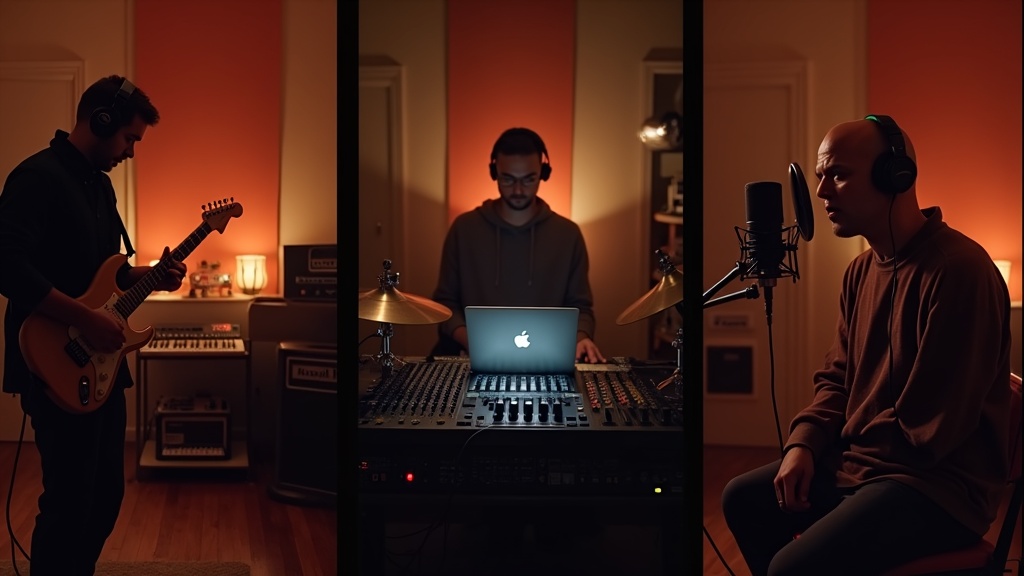
After trying out free versions, most beginners hit a wall: “Which one should I actually buy?” The most common mistake in choosing a DAW is focusing too much on feature count. Narrow down your options by first sorting out three things: the genre you want to make, your platform, and your budget.
If You Want to Make Pop or Band Music
If recording live instruments and editing vocals are your main focus, the quality of built-in sounds and recording tools should drive your decision.
For Mac users, Logic Pro is the top pick. Its bundled instruments — Drummer, Retro Synth, and more — are production-ready quality used in professional tracks, which means you can keep extra purchases close to zero. If you’re strictly on Windows, Cubase Artist or higher is a solid, reliable choice. It has a stable audio engine and a workflow that handles band arrangement mixdowns with ease.
- Mac → Logic Pro (best value for money)
- Windows → Cubase Artist or higher
- Need both Mac and Windows → Studio One (cross-platform support)
You can check the full features and latest pricing for Studio One Artist on the official website. The fact that you can gradually upgrade from the free Prime version is a reassuring setup for beginners.
If You Want to Make EDM, Beats, or Electronic Music
If loop-based production and live performance are part of your vision, Ableton Live’s Session View offers something no other DAW can match. Its unique workflow — where you arrange clips and experiment with song structure in real time — is widely considered a perfect fit for EDM and beat-making.
That said, Ableton Live has limited score editing capabilities, making it a poor fit for classical arrangements or complex orchestral compositions. It’s a choice that requires committing to electronic music as your primary focus.
For the latest pricing and full feature details on Ableton Live Standard — great for loop production and live performance — check the official website.
If You Want to Keep Costs as Low as Possible
If you want to test the waters before spending money on a DAW, GarageBand (Mac only, free) or Reaper (fully functional during its evaluation period) are both practical options. GarageBand shares the same basic workflow as Logic Pro, which makes upgrading to Logic later a smooth and low-cost transition.
- On Mac → Starting with GarageBand then moving to Logic is the smoothest path
- On Windows → Try Reaper’s evaluation version to get a feel for it before deciding
If You’re Aiming for Professional-Quality Work Down the Road
When you’re working with studios or engineers, compatibility with industry-standard formats becomes important. Pro Tools still has a strong presence in recording studios, and it becomes a real consideration in situations where session file exchange is expected. Keep in mind, though, that it uses a monthly/annual subscription model, so factor in the ongoing cost during periods when you’re not producing as much.
Cubase and Logic Pro both have solid track records in professional environments. The idea that “you can’t work without Pro Tools” is less true than it used to be. In the long run, it makes more sense to master a DAW that feels right to you first. Check each DAW’s official website for the latest compatibility details.
If you want to check the latest pricing and full specs for Cubase Pro, head over to the official website. Academic versions are often available at less than half the standard price, so if you’re a student or affiliated with an educational institution, it’s worth looking into.
Final Verdict: The Best DAW for Beginners
We’ve compared six DAWs throughout this guide — now let’s cut to the chase and give a clear recommendation based on who you are.
- Always try a DAW’s free or trial version before committing
- If the UI or workflow doesn’t click, no amount of features will keep you going
- For your first DAW, prioritize “something you can try” over “the perfect choice”
For any DAW, the fastest way to find out if it’s right for you is to download the free trial from the official website and just start using it. Check each DAW’s official site for the latest specs and feature details.